
ChatGPT can summarize a YouTube video, but not the way most people expect. It does not watch the video, process the audio, or extract anything directly from the URL. What it actually does is analyze text you feed it. That text has to come from the video’s transcript, and getting that transcript is the step most guides gloss over.
Once you understand how the process actually works, it becomes quick and reliable. This guide walks through every method available in 2026, from the manual copy-paste approach to browser extensions that automate the whole thing in one click.
What ChatGPT Actually Does When Summarizing a YouTube Video
There is a common misconception worth clearing up before anything else. ChatGPT cannot stream content directly from a YouTube URL. If you paste a YouTube link into a standard ChatGPT conversation and ask for a summary, nothing meaningful happens because the model has no way to access or play the video.
What ChatGPT can do is read and condense text at a high level. So the workaround is to convert the video’s spoken content into text first, then hand that text to ChatGPT. This transcript-based approach works well for most videos, but it does have one key limitation: anything that relies on visuals, on-screen demos, or graphics does not make it into the transcript. A coding tutorial where the instructor types in a terminal, for example, will produce a transcript that sounds like commentary without context.
The short version: ChatGPT summarizes the transcript, not the video. For most talking-head, educational, and interview content, that is more than enough. For heavily visual or screen-recorded content, some context will be missing.
Method 1: Copy the Transcript Manually from YouTube
This is the most straightforward method and requires no extra tools. YouTube auto-generates transcripts for the vast majority of public videos, and they are accessible directly on the video page.
- Open the video on YouTube Navigate to the video you want to summarize and let it load fully in your browser.
- Expand the description box Below the video player, click the …more button to expand the full description area.
- Click “Show transcript” Scroll down within the description until you see the Show transcript button. Clicking it opens a scrollable transcript panel alongside the video.
- Copy the transcript text Select all the text in the transcript panel and copy it. You may want to toggle off timestamps first using the three-dot menu at the top of the transcript panel, which keeps the paste clean.
- Paste into ChatGPT with a prompt Open ChatGPT, paste the transcript, and add a specific instruction above or below it. Vague prompts produce vague results.
Prompts that actually work
Rather than just writing “summarize this,” try prompts that direct the output toward what you need:
- For a quick overview: “Summarize the key points from this transcript in 5 bullet points.”
- For a detailed breakdown: “Write a structured summary of this transcript with section headings and the main argument in each.”
- For actionable takeaways: “Extract the three most actionable pieces of advice from this transcript.”
- For a specific audience: “Summarize this transcript for someone with no background in [topic].”
Watch out for long videos: ChatGPT has a context window limit. Transcripts from videos longer than roughly 30 to 40 minutes may need to be split into sections and summarized separately, then combined. Summarize each section individually, then ask ChatGPT to produce a final summary from your section summaries.
Method 2: Use a Browser Extension to Automate It
If you do this regularly, the manual copy-paste process gets tedious fast. Several Chrome extensions handle the transcript extraction automatically and send it to an AI model with a single click.
YouTube Summary with ChatGPT & Claude (Glasp)
This is the most widely used option, with over two million users. Once installed, it adds a summary button directly to the YouTube video page. You can choose which AI model runs the summarization, including ChatGPT, Claude, Gemini, or Mistral, and you can customize the prompt and summary length. The transcript is also viewable alongside the video with clickable timestamps.
The extension is free for desktop use. A paid tier adds mobile support and PDF summarization.
How to install and use it
- Go to the Chrome Web Store and search for “YouTube Summary with ChatGPT & Claude” by Glasp. Click Add to Chrome and confirm.
- Open any YouTube video you want to summarize. A new Transcript & Summary panel appears alongside the video.
- Click the AI summary button to generate a summary. You can choose your preferred AI model from the settings and adjust prompt style and length.
Method 3: Use a Third-Party Transcript Tool Then Paste
Some videos do not have transcripts available through YouTube natively, or the auto-generated captions are too inaccurate to be useful. In these cases, a dedicated transcript tool can produce better input for ChatGPT.
| Tool | How it works | Best for | Free tier |
|---|---|---|---|
| Tactiq | Paste YouTube URL, get clean formatted transcript | Quick extraction, no account needed | Yes |
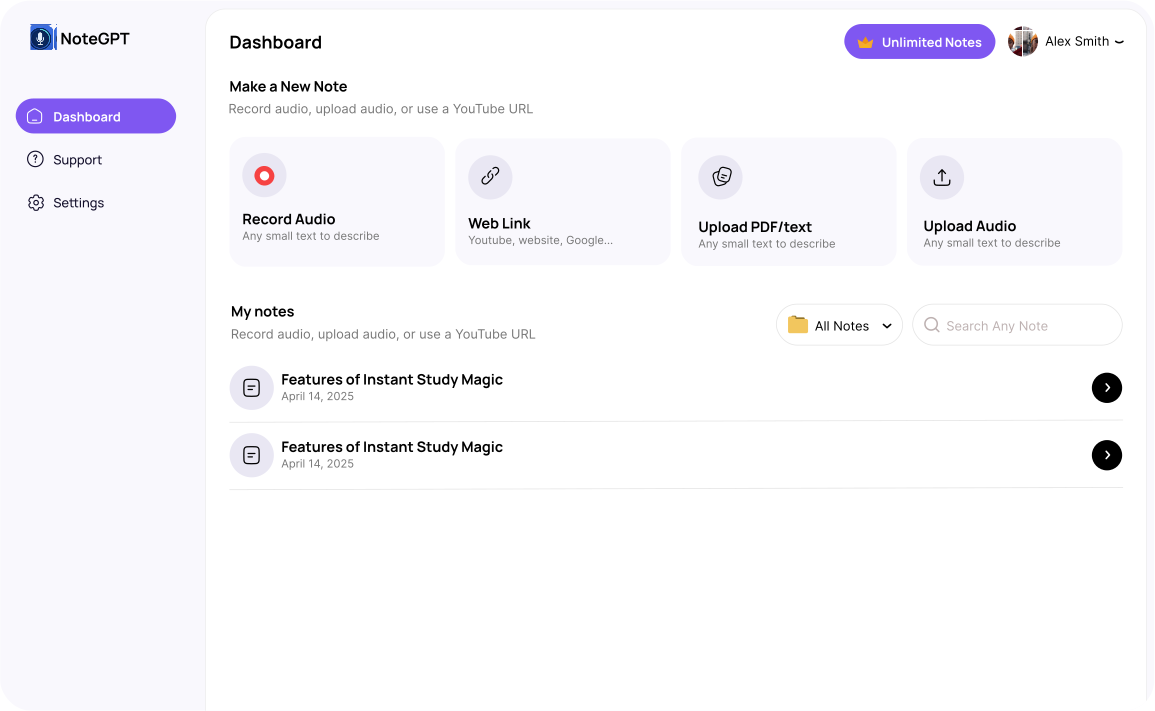
| NoteGPT | Generates transcripts and AI summaries in one step | Videos without native captions | Yes (limited) |
| YouTubeToTranscript.com | Paste URL, copy transcript with timestamps removed | Fast copy-paste into ChatGPT | Yes |
| Notta | Audio transcription with high accuracy | Technical content, accented speech | Limited |
The process is the same regardless of which tool you use: get the clean transcript text, then paste it into ChatGPT with a targeted prompt.
When ChatGPT Summarization Works Well (and When It Doesn’t)
The quality of the summary depends almost entirely on two factors: the accuracy of the transcript and the nature of the video’s content.
Works well for
- Interviews, podcasts, and talking-head videos where most of the value is in what’s being said
- Lectures, explainers, and educational content with clear verbal structure
- News summaries, commentary, and opinion pieces
- Recorded webinars or presentations where the speaker talks through slides
Produces incomplete results for
- Coding tutorials where critical steps happen on screen without verbal explanation
- Product reviews that rely on physical demonstrations or hands-on footage
- Videos with heavy use of charts, diagrams, or visual data
- Content with poor auto-captions due to strong accents, technical jargon, or background noise
For visual-heavy content, the summary will still give you a reasonable sense of the topic and main arguments, but you may miss specific details that were shown rather than spoken.
Tips for Better ChatGPT Video Summaries
Remove timestamps before pasting. Transcripts copied directly from YouTube include timestamps like “[00:45]” scattered throughout the text. These fragment sentences and confuse the model. Most transcript tools let you disable timestamps before copying, which produces a much cleaner input.
Split long transcripts. For videos over 30 to 40 minutes, paste the transcript in chunks. Summarize each chunk individually, then paste those summaries together and ask ChatGPT to combine them into one final summary. This approach produces more accurate results than overwhelming the model with a single very long input.
Be specific in your prompt. The more specific your request, the more useful the output. “What are the main arguments made in this video?” will get you something more actionable than “summarize this.”
Check the transcript for errors first. Auto-generated captions are imperfect, especially for technical terminology, proper nouns, or non-native English speakers. A quick scan of the transcript before pasting helps you spot and correct any obvious errors that would affect the summary’s accuracy.
Frequently Asked Questions
Can I just paste a YouTube link into ChatGPT and get a summary?
Not through the standard ChatGPT interface. Pasting a URL does not give ChatGPT access to the video or its audio. You need to provide the transcript as text. Some third-party tools and browser extensions automate this step, but the underlying process is always transcript-first.
Does the video need captions or subtitles enabled?
Yes, if you are using YouTube’s built-in transcript feature. Most public videos have auto-generated captions, so this is rarely a problem. For videos without any captions, you will need a third-party transcription tool to generate the text first.
Is there a video length limit?
ChatGPT itself does not cap video length, but the context window means very long transcripts may get cut off or produce lower-quality summaries. For anything over 30 to 40 minutes of video content, splitting the transcript into sections and summarizing in stages gives better results.
Can ChatGPT summarize videos in languages other than English?
Yes. If the transcript is available in another language, ChatGPT can summarize it and can also translate the summary into English or any other language you specify in the prompt.
Are browser extensions safe to use?
The major extensions like Glasp have millions of users and are well-established. As with any browser extension, it is worth reviewing the permissions it requests before installing. Avoid lesser-known extensions that request broad access to all your browsing activity.
Does this work on private or age-restricted videos?
No. YouTube’s transcript feature only works on public videos. Private, unlisted with disabled captions, and age-restricted videos cannot be transcribed through standard methods.